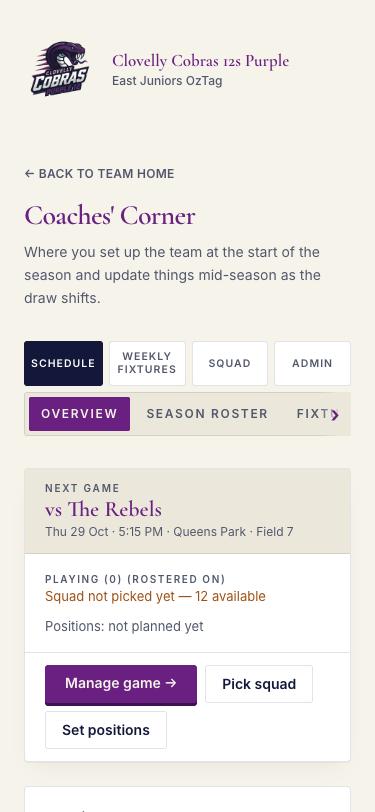
Your Coaches’ Corner
Everything for Cobras 12s Purple lives here. Sign in with the email we invited — no password, we send a link.
- Schedule: the season, round by round.
- Weekly fixtures: follow the five numbered steps: 1 Select Game → 2 Attendance Poll → 3 Confirm Squad → 4 Assign Positions → 5 Manage Game.
- Squad: players, stats and availability.
- Admin (admins only): invite coaches, venues, settings.
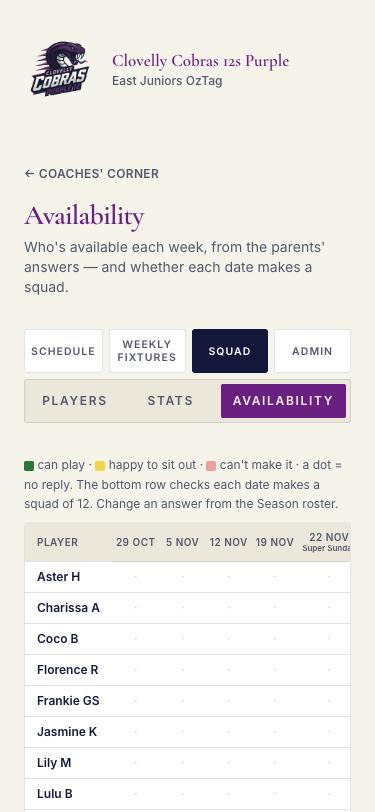
See who can play
Parents answer In, Maybe or Out from their team link. You see every answer in one grid.
- Squad → Availability: players down the side, dates across, with a check that each date makes a full squad.
- Weekly fixtures → Squad & availability: tap In, Maybe or Out beside a player to change their answer if a parent tells you by text.
- In the same place, the "Parents’ page for this game" card has Share on WhatsApp, Copy link, and a list of who has not replied yet.
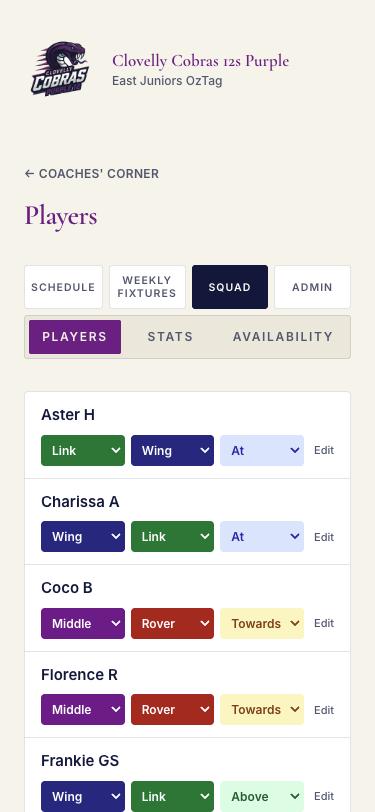
Set positions and strength
Do this once at the start of the season. It feeds the squad suggestion and the game plan.
- Squad → Players: each row has Preferred position, 2nd choice and Rep potential.
- Rep potential: 1 = working towards, 2 = working at, 3 = working above. It is used to mix levels across the squad, not to rank kids.
- Tap Edit (small, end of the row) to change a name or deactivate a player.
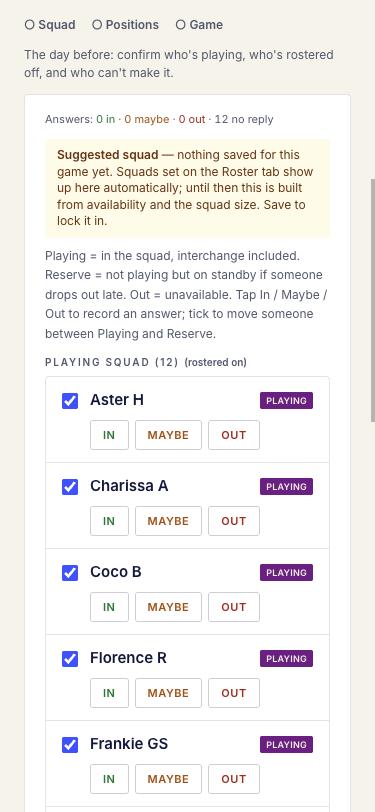
Choose who plays this week
Weekly fixtures → Step 2 Attendance Poll (share the poll with parents), then step 3 Confirm Squad.
- Three groups: Playing (interchange included), Reserve (standby) and Out (parent said no).
- A suggested squad appears first: it follows availability and gives everyone a fair share of games. Move anyone between Playing and Reserve.
- Squad size is a floor, not a cap. Press Save squad and continue and you move straight to step 4.
Set positions for the game
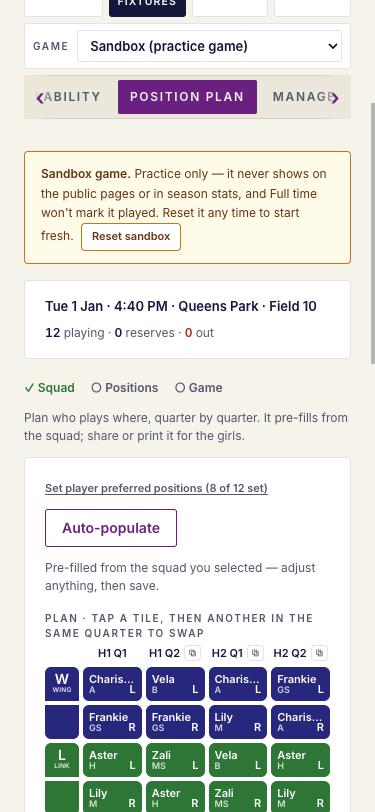
Step 4, Assign positions: who plays where, quarter by quarter, built the night before.
- Auto-populate pre-fills the grid from your squad. Tap a tile, then another in the same quarter to swap.
- Set player preferred positions (link above the grid) and they show as hints while you place players. Wing, Link, Rover and Middle each have their own colour and letter.
- The plan saves itself as you go and carries into game day. It is a starting point only — nothing is enforced. Share or print it for the bench. Press Save plan and continue for step 5.
Run the game on the sideline
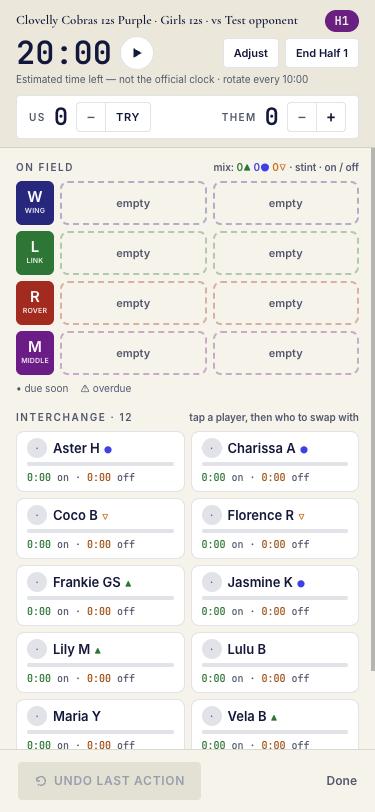
Step 5, Manage game: Start game opens the live tracker, with the plan already loaded.
- The clock counts down from the period length. Press play to start; forgot? Use Adjust to correct it.
- The Next subs banner counts down to the next rotation and lists who comes off and on, based on who is actually on the field. Score with US / THEM: tap TRY for ours.
- On field shows each position slot. In the Interchange list, tap a player, then who to swap with. On-field time and time off are tracked per player; markers show who is due soon or overdue, and the Game time bars show each player’s share of the match so far and how many stints they have had.
- End Half 1 at the break, then load the Half 2 lineup. Made a mistake? Undo last action. Reloading keeps the on-field picture; the clock resumes paused. Started a game by mistake? Use Started in error? Reset game on the Manage game step; it keeps the squad and plan.

You are set
Admins can invite other coaches (as coach, or with admin rights) under Admin → Users. The recorder passphrase parents use on match day starts as 1234; change it under Admin → Settings. Save Coaches’ Corner to your home screen.
Open Coaches’ Corner →